In SimpleLocalize, every project language (or locale) has language key that is used during file export as filename, and language name which can be treated as a user-friendly display name. You can set up the language keys as country codes, language codes, locale codes, or any other format that suits your project.
Language keys
Language keys are used to identify languages and locales in your project. They are used as a part of the filename in exported files, and they are used to identify languages in the SimpleLocalize application, REST API, hosted resources, and CLI commands.
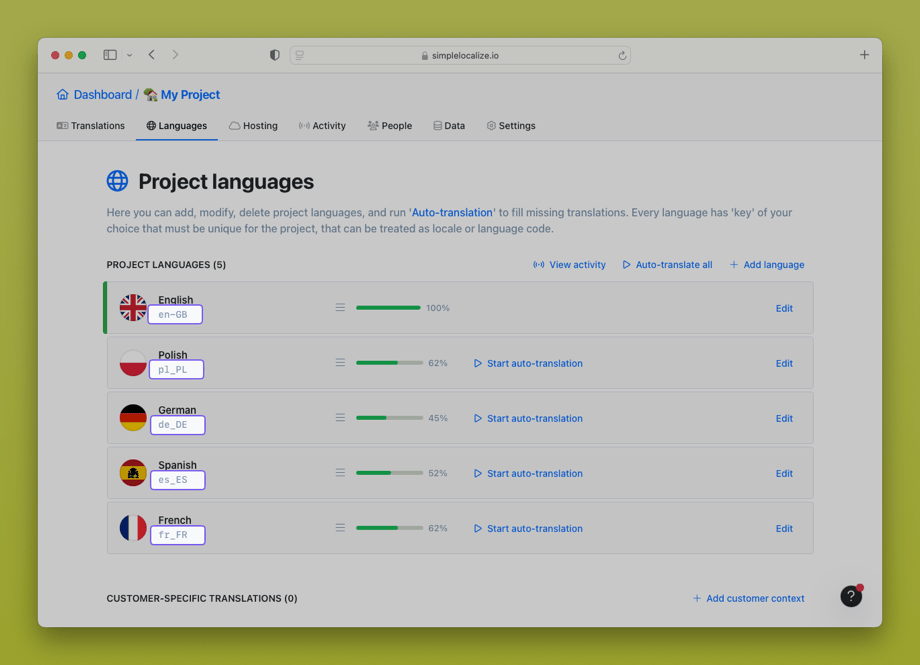
Language keys can have up to 20 characters and can contain only letters, numbers, dashes, and underscores. They are case-sensitive, so en and EN are treated as different entities.
Best practices
When choosing language keys for your project, it is important to follow some best practices to ensure that your project is organized and easy to manage. The most common practice is to use ISO 639-1 language codes, which are two-letter codes that represent languages. For example:
en- Englishde- Germanfr- Frenches- Spanishpl- Polish
You can also use ISO 3166-1 country codes, which are two-letter codes that represent countries. For example:
US- United StatesDE- GermanyFR- FranceES- SpainPL- Poland
or a combination of both, like en, en_US, en_GB, es, es_MX and use fallback languages option feature.
You can find a full list of language, country, and locale codes in our World Data Resources including JSON format and hosted country flag icons.
Add a new language
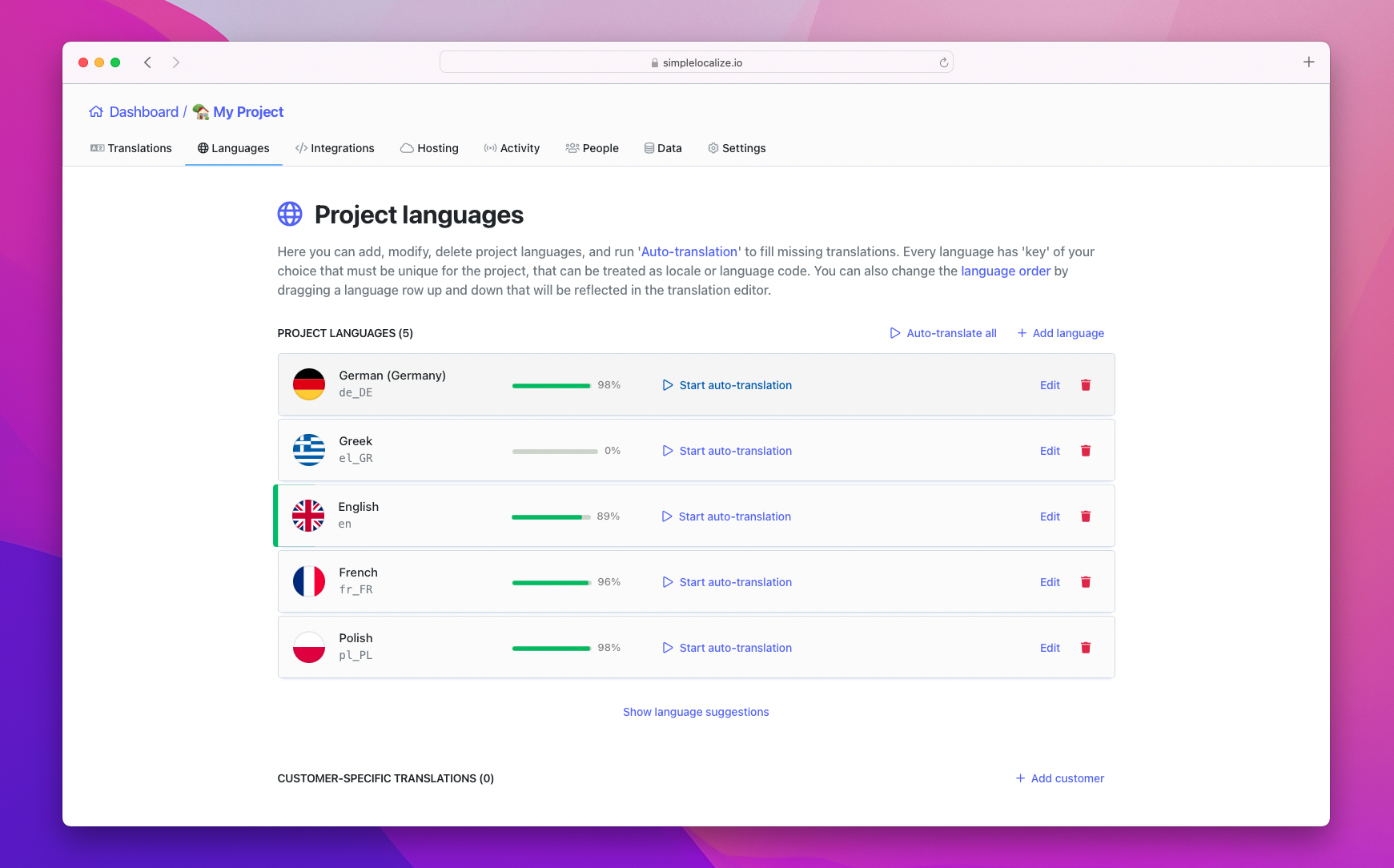
Click the Add language button to add a new language to your project. You can choose the languages from the list, or you can enter a custom language key and display name.
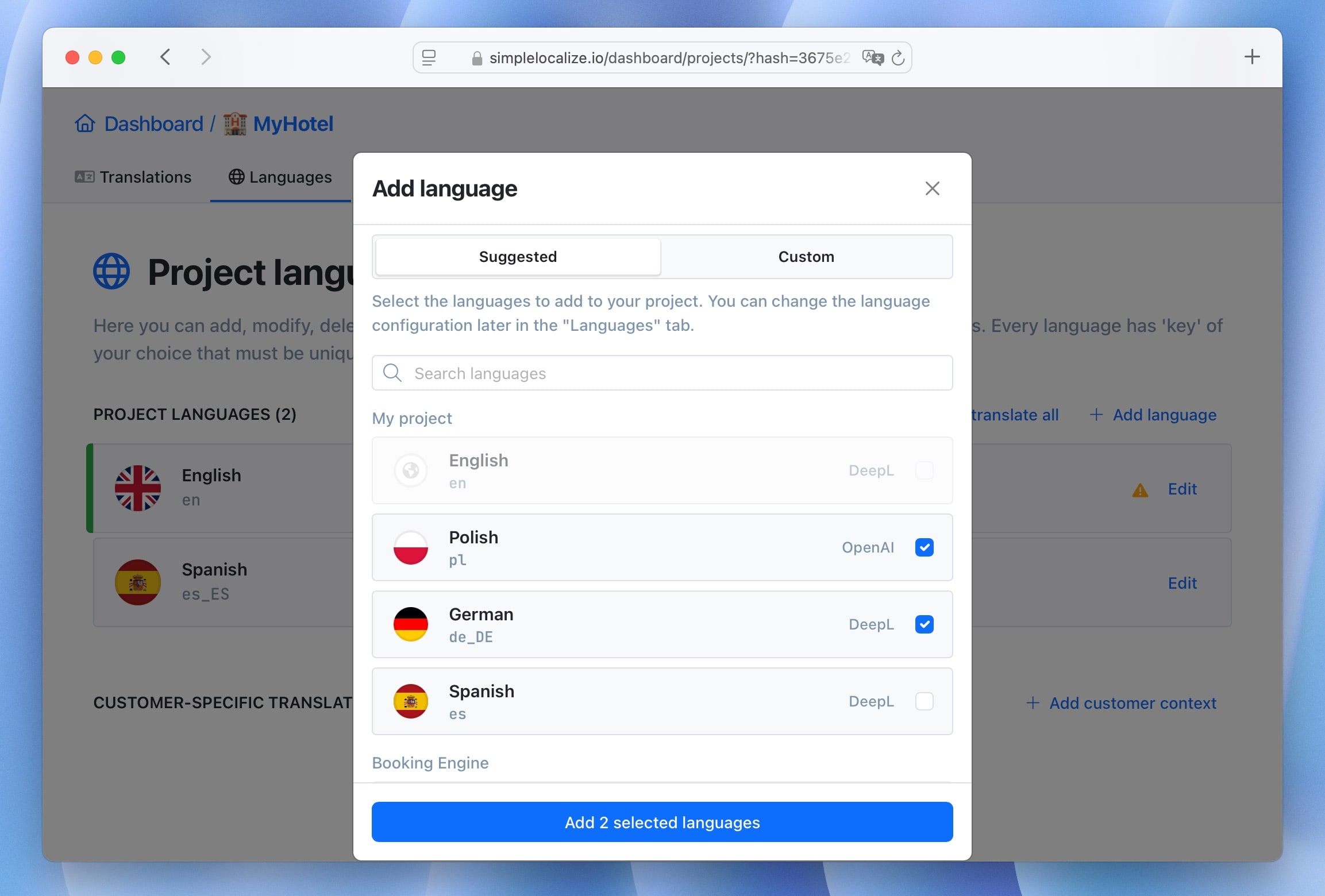
In Suggested languages, you can find the most popular languages and search for the language you want to add. On the list, you will also find languages that are used in your other projects, so you can quickly add them to the current project.
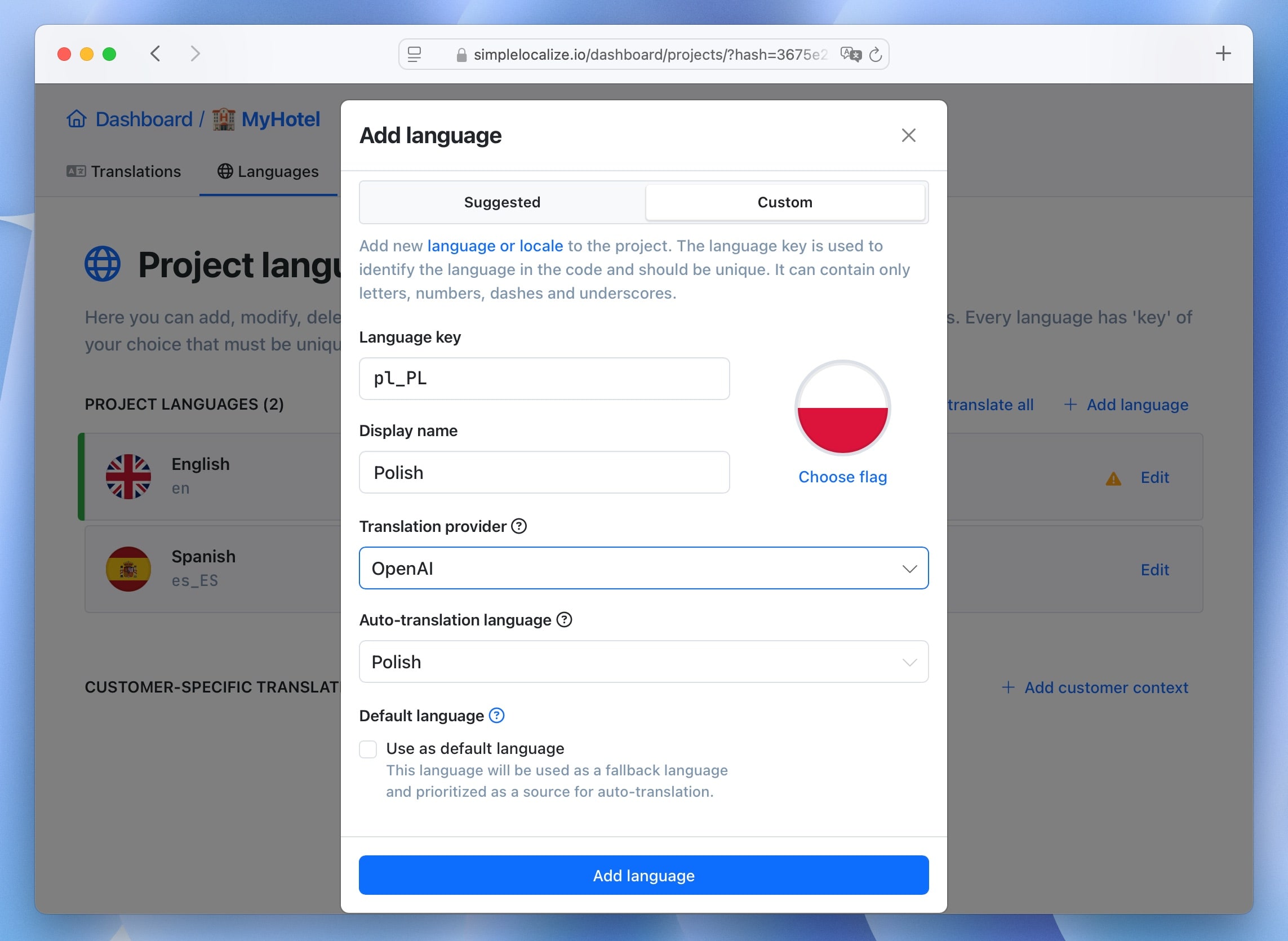
In Custom languages, you can enter any language key and display the name. This is useful when you want to use a custom format for your language keys or when you want to add a language that is not available in the list.
Reorder languages
You can rearrange language order which will affect order in the 'Translations' tab and in the exported files. You can save language order for the whole project, which will be used as the default order for every project contributor. Every user can rearrange the language order on their own. Translators cannot change the project order, but they can adjust the view for themselves.
To change language order, drag-and-drop the languages on the list. When the order is done, save the changes for the project or just for your own use.
Default language
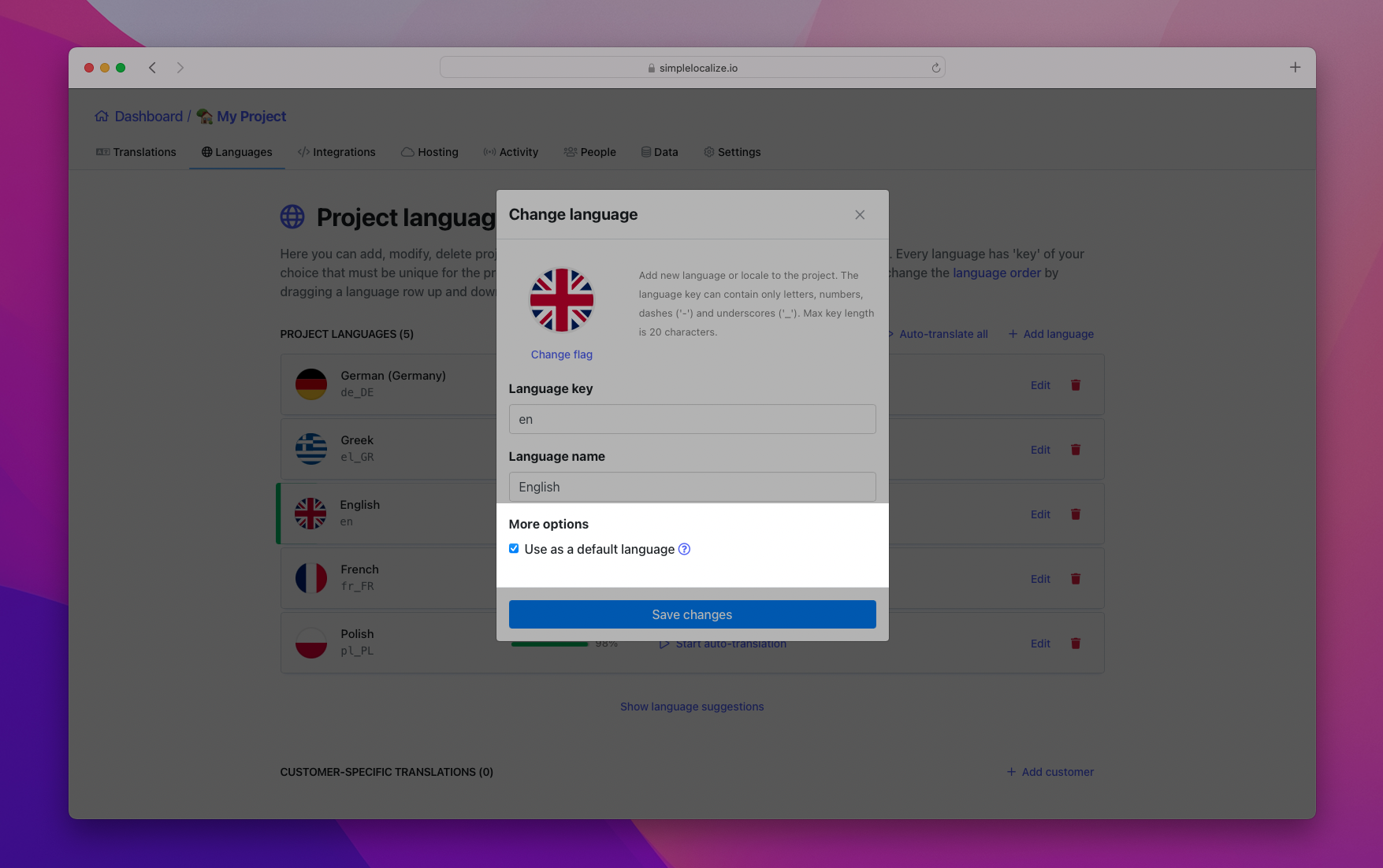
The default language has a special role in the project, and it is used in a few different ways. It is the language that will be prioritized during the auto-translation process, it will be used as a fallback language for translation in translation hosting, and it will be treated as a source language in some areas of the application to display additional information.
Fallback languages
For each language (except the default language), you can set up a fallback language. This is useful when you want to provide a secondary option for translations that might be missing in a specific language.
Fallback languages are chained. This means if a translation is unavailable in the first fallback language, the system will check the next fallback language in the chain, and so on. Ultimately, if no translation is found, the system will resort to the default language or leave the translation empty.
To use fallback languages, in your exports you have to use ENABLE_FALLBACKS option, and have selected the default language.
Language flags and icons
By default, the flag icons are displayed automatically based on language keys. SimpleLocalize uses ISO 3166-1 standard with 'Alpha-2' notation. The 'Alpha-2' means that we use only 2-letter country codes. The flag will show up regardless letter case. For example:
es_MX- results with a Mexico flages_ES- results with a Spanish flages_es- results with a Spanish flages- results with a Spanish flag
There are a few exceptions in showing country flags:
zh_hansorzh_hantwill show the Chinese flag.- A language key which starts from
enshows a Great Britain flag.
You can also change a flag for languages regardless of the language key. Adjust the flag manually for your project needs, so they correspond to the selected language. Flags setup is a great way to organize your project, as you can recognize the language and location with just a glance.